
Your card in the phone's wallet
Opened with a tap, and whoever scans its code saves your number. On iPhone and Android.
Wallet card
- Open your account A minute, with your e-mail address only.
- Choose the Step plan 4 US dollars a month, billed annually
- Make it and print it Change what it shows whenever you like, with no reprint, and see how many times it is scanned.



Folded among the cards: the business and the job title show.
The code, with Call and Get Directions.
With its camera, no app.
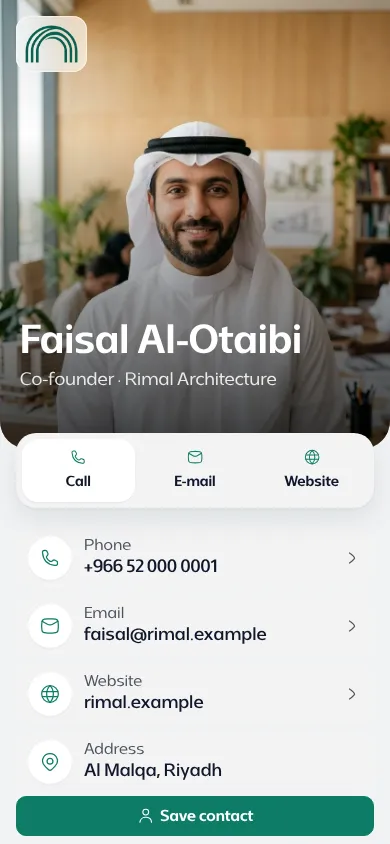
The very contact page the code opens.
The details, ready in one tap.
The number is kept from the first meeting.
In the wallet Folded among the cards: the business and the job title show.
Every kind of code
How to make your wallet card
- Open an account on the Step plan or one above it, and choose “Wallet card”.
- Type its holder's name, job title and mobile number, and add their photo.
- Choose one of three looks: a poster with their photo, a poster with the business's picture, or Classic, each shown with their own details.
- Finish the details: what each place on it shows, the two buttons under it, and the colours.
- Add it to your own phone's wallet, or send its link to the person it belongs to.
What people see when they scan it
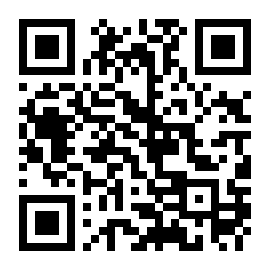
- The card shows a code in the wallet: whoever scans it opens your contact page, with your photo, your details and a “Save contact” button.
- Or, if you choose so, the code holds the contact itself, and the phone saves it at once, without the internet.
- The page opens in the browser, with no app and no account.
One card, kept up to date
The card in the wallet and the page behind it share the same details: change your number or your job title in your account, and both follow, on every phone that holds the card.
Wallet cards come with the Step plan and those above it, each one counted on your plan. A digital business card can carry a wallet card too. Pricing
Questions about a wallet card
Which phones does it work on?
iPhones with Apple Wallet and Android phones with Google Wallet. Older iPhones show the classic look, with the same details.
Does the person scanning need an app?
No. The code opens your contact page in the browser, or saves the contact straight away if you chose a static code.
What happens when my details change?
Change them in your account: the page and the card in every wallet that holds it follow.
How many wallet cards can I make?
Wallet cards come with the Step plan and those above it, and each plan has its own number of them. Pricing