
Digital menu with a QR code
Menu
A menu with categories, prices and calories.
- Open your account A minute, with your e-mail address only.
- Choose the Grow plan 19 US dollars a month, billed annually
- Make it and print it Change what it shows whenever you like, with no reprint, and see how many times it is scanned.
-
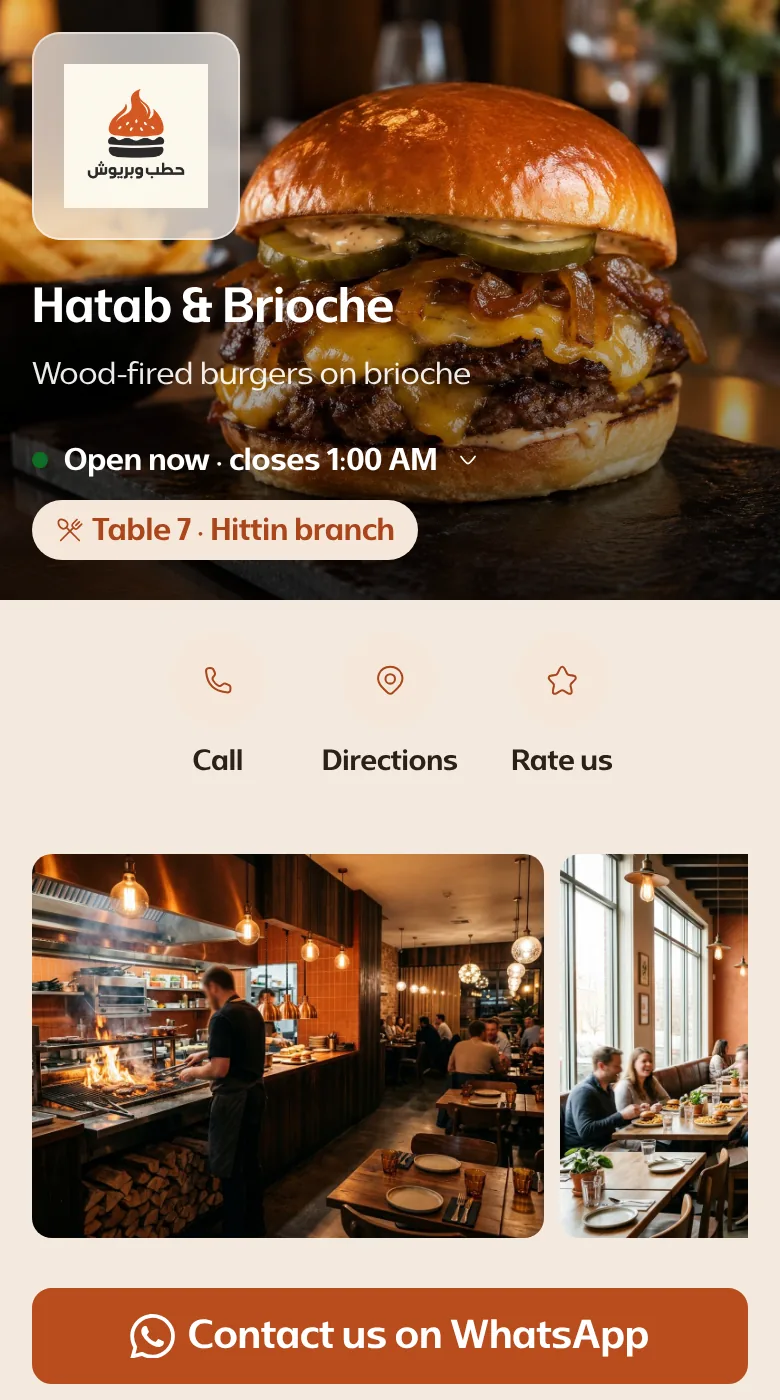
The table and branch, with buttons to call and get directions.
-
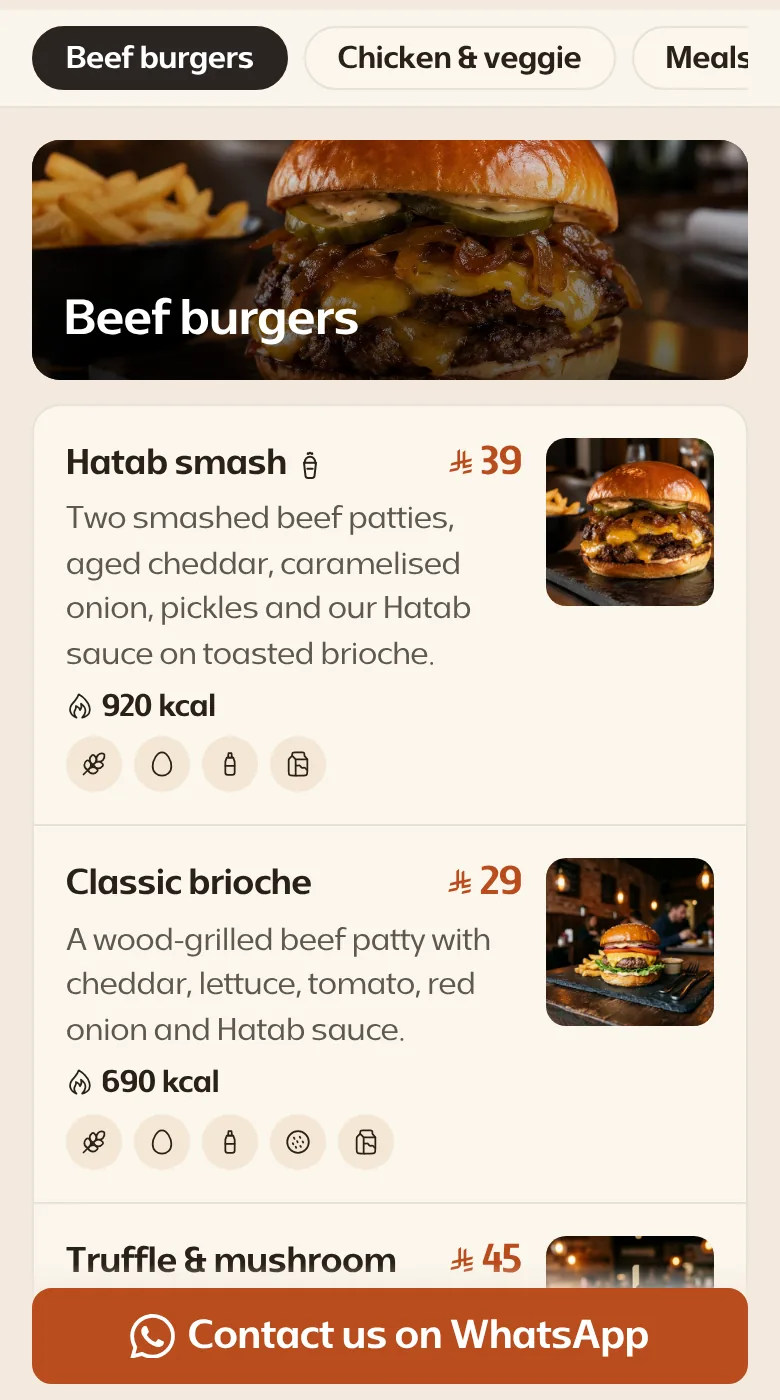
With their photos and prices.
-
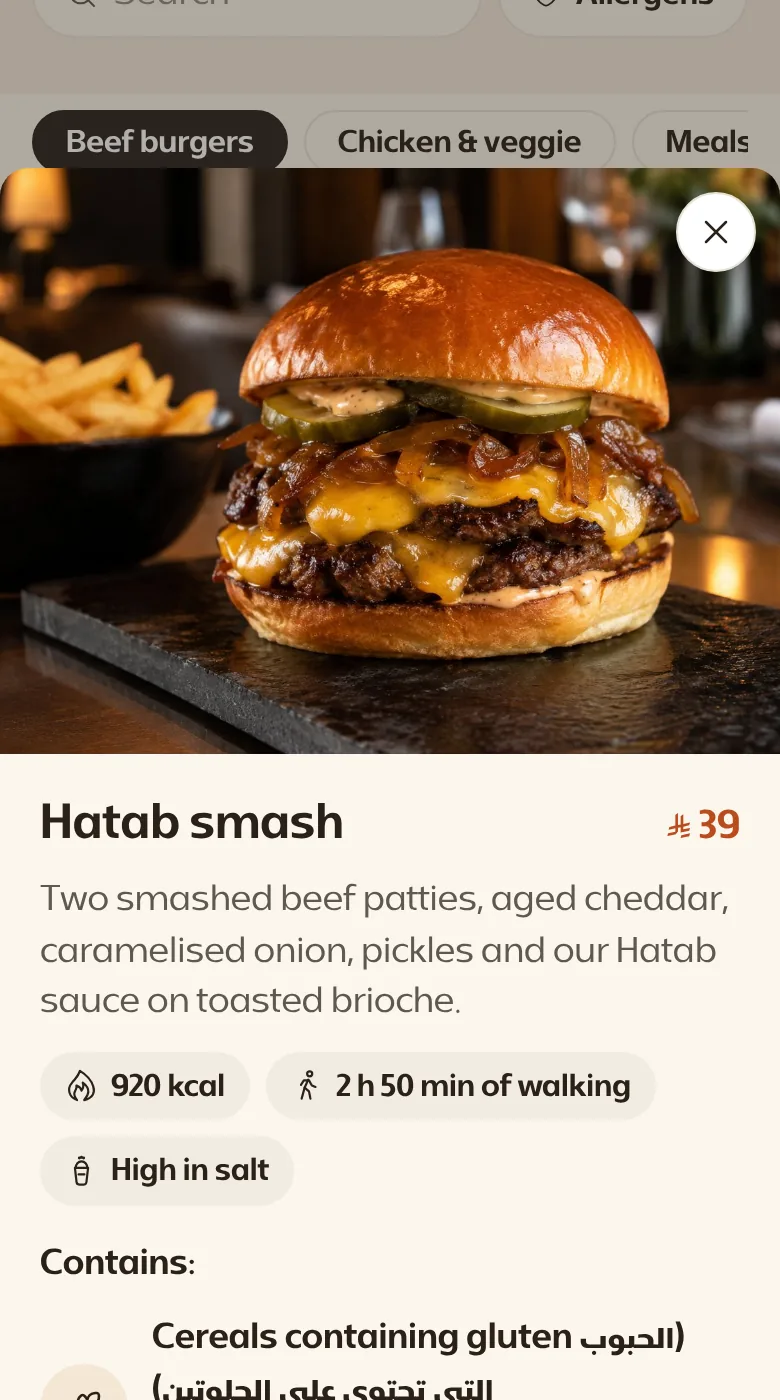
Its photo, calories and allergens.
-
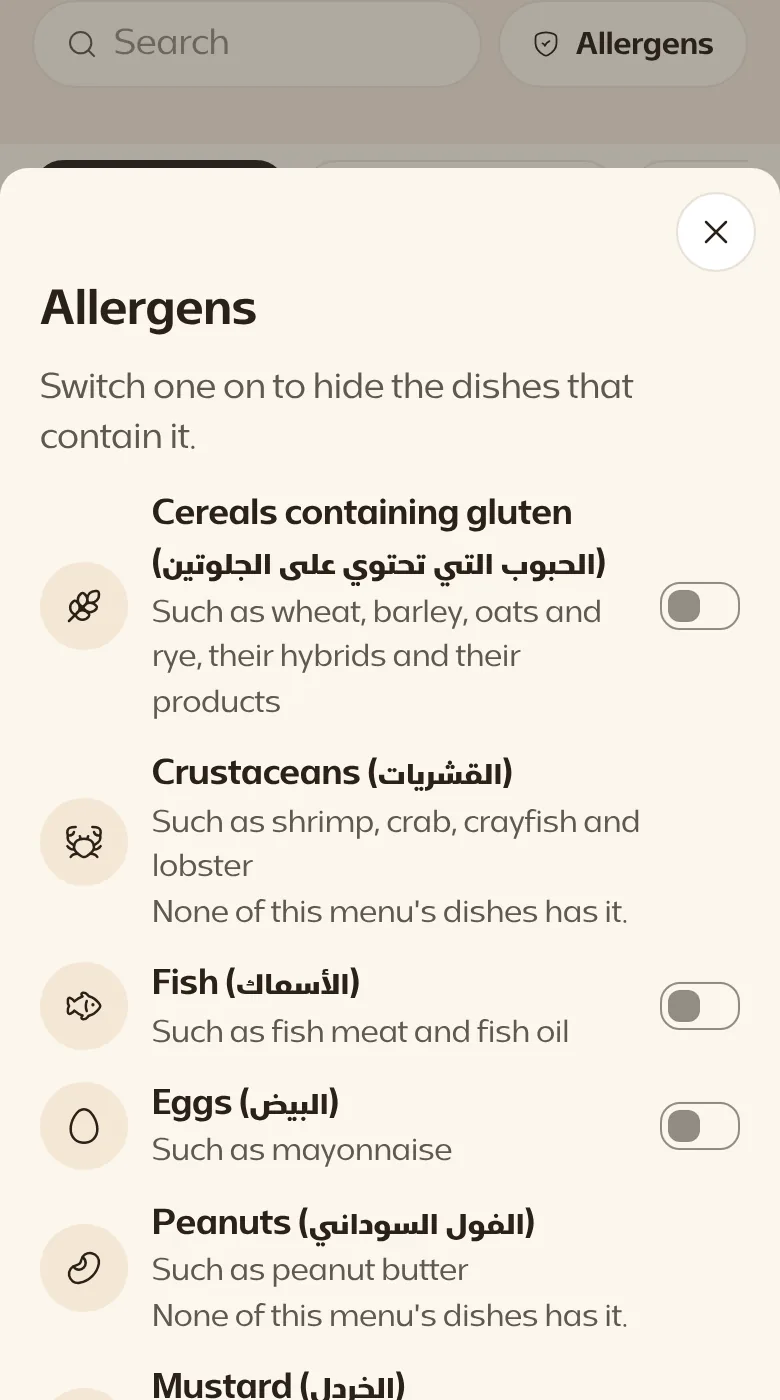
The guest hides what does not suit them.
-
To order by a message that names the table.
Every kind of code
How to make a digital menu
- Open an account, subscribe to the Grow plan or one above it, then choose “Menu”.
- Type the name of the restaurant or café and a short line about it, and add its logo.
- Add the categories, such as hot drinks and desserts, then each category's items: name, description, price and photo.
- For each item, add whichever you want shown: calories, allergens and caffeine.
- Download the code and print it for the tables or the door. From then on you change the menu from your phone, and the print does not change.
What the guest sees
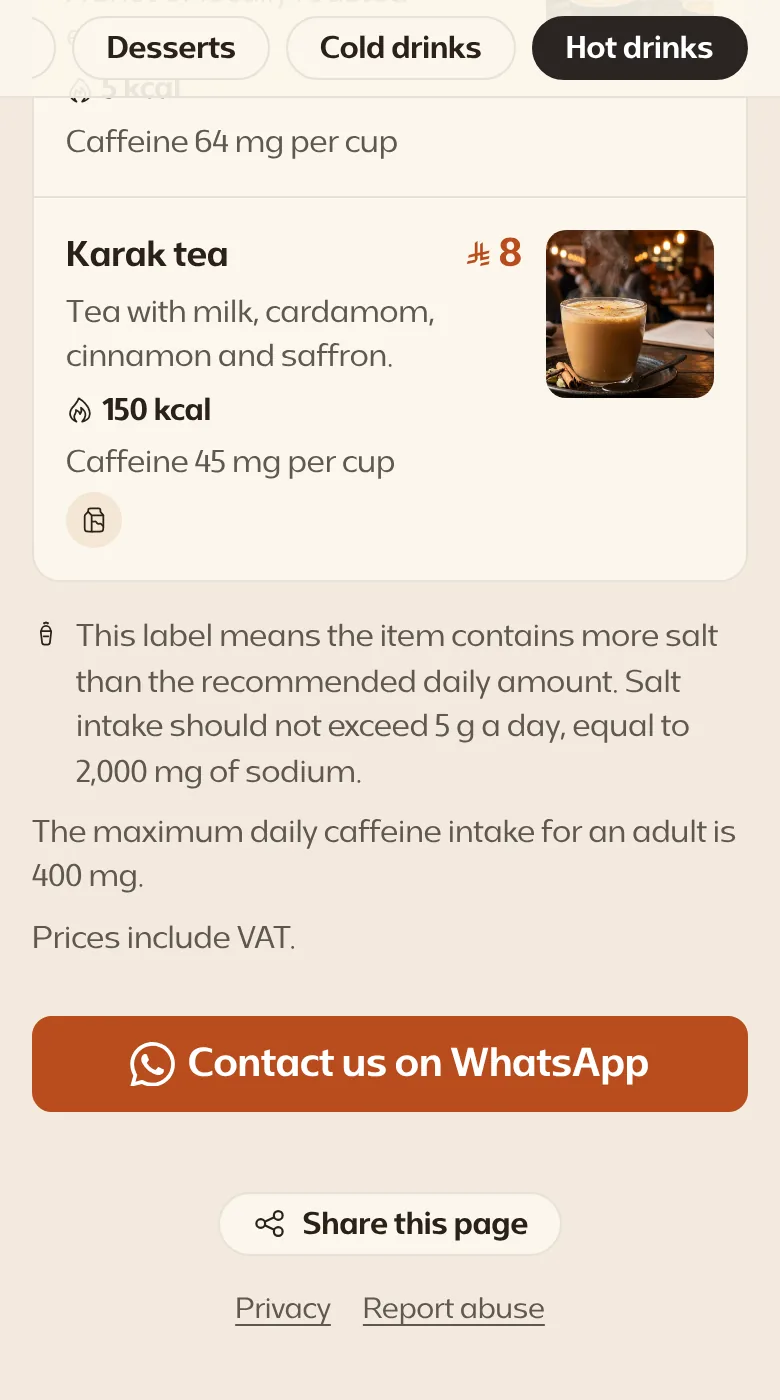
- Your restaurant's name and logo, and a category bar to jump between sections of the menu.
- The items with their photos, descriptions and prices, and a “Prices include VAT” line if you want it.
- Calories, caffeine per cup or per 100 ml, the high-salt label, and how many minutes of walking it takes to burn the item off.
- The 14 allergens, in Arabic on every menu.
- A WhatsApp button, to order or to ask, if you add your number.
It opens in the browser, with no app and no account.
Where it is used
- On restaurant and café tables, instead of a paper menu that wears out and needs cleaning.
- On the shop window, so that passers-by see the dishes and prices before coming in.
- On a food truck or a stand at a fair, where there is no room for a large printed menu.
- On the delivery bag, so that the customer comes back to the menu and orders again.
- For the services of a salon, a bakery or a laundry: categories and prices suit more than food.
Why a PDF is not enough
A PDF is hard to read on a phone, and every price change means a new file. This menu is made for phones: change a price or remove an item that has run out, and the next guest sees it at once.
Before you print
- Open the menu on your phone, and check the prices and photos as the guest will see them.
- Write words such as “Scan for the menu” next to the code, so that the guest knows what it opens.
- A table code is scanned from close by, so a small size will do; a sign on the window needs a larger one.
- Send the printer an SVG or PDF file, not a picture, so that the code stays sharp at any size.
Change it any time, and what it costs
An item has run out, or a price has changed? Change it from your phone, and the printed code stays as it is. And you see how often it was scanned.
The menu comes with the Grow plan and those above it, and works as soon as you subscribe. Its page carries no “Made with Kuody” line.
A menu for every branch, and a code for every table carrying its number so the kitchen knows where an order came from, come with the Grow plan and those above it. Pricing
Questions about a digital menu
Does the guest need an app?
No. They point their phone's camera at the code and the page opens in the browser.
Is the digital menu free?
The menu comes with the Grow plan and those above it, and its page carries no “Made with Kuody” line. A ready menu in PDF goes in a PDF QR code on the free plan. Branches and tables come with the Grow plan and those above it.
Can I add a photo to each item?
Yes, if you like: you upload it from your phone, up to 8 MB per photo. Photos help a guest choose faster.
I already have a menu as a PDF. Can I use it?
Yes, with a PDF code: you upload the file and replace it whenever it changes. But a menu page is easier for a guest to read than a file.
What happens to the menu if I stop paying?
Nothing is deleted. The printed code keeps opening the menu while a plan covers it, and for 90 days after a subscription ends, unless its first payment was refunded. The details are on the pricing page.
Can I see a menu before I open an account?
The page for restaurants and cafés explains what the guest sees and what you see.